
Invited as a subcontractor: accept and get started
Last updated October 20, 2026 · 4 min read

Arjen Mekelenkamp · Founder WorkAdministration · 10+ years of EU posting compliance
Content checked on October 20, 2026
A main contractor, the company that gives you the work, has invited you to a project by email. Here you accept the invitation, create your free account and open the project.
Step 1: Open the invitation
- Open the email from the main contractor.
- Click Get started now. The invitation opens in your browser.
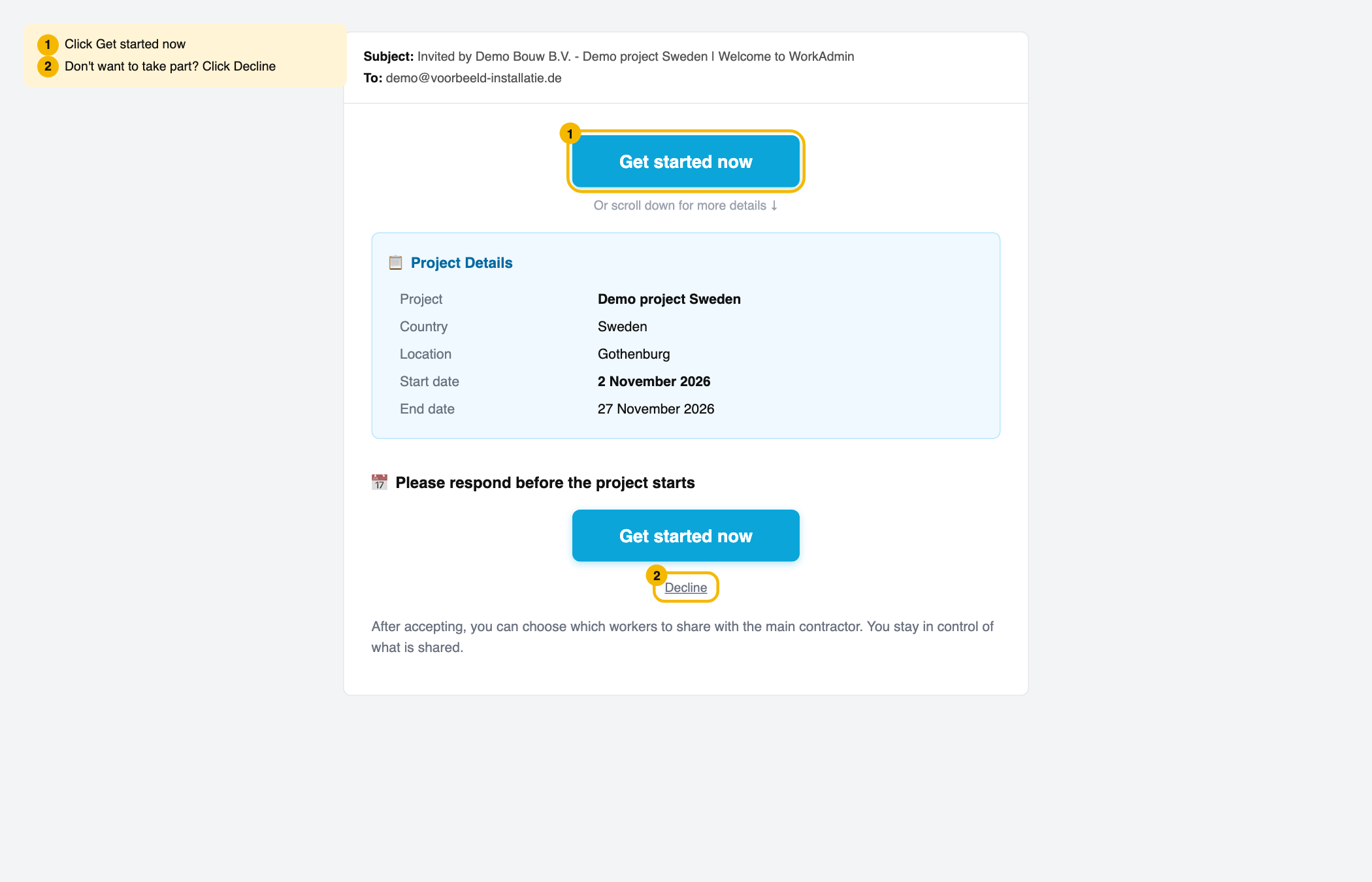
Can't find the email? Check your spam folder. Not there either? Ask the main contractor to send you the sign-up link themselves.
Step 2: Check the project
At the top you see your company name and the project. In the first box, after the word "by", is the main contractor. Below it you see the country and the period. If something is wrong, contact the main contractor. Then read "What you get:" and "How it works:" and scroll down.
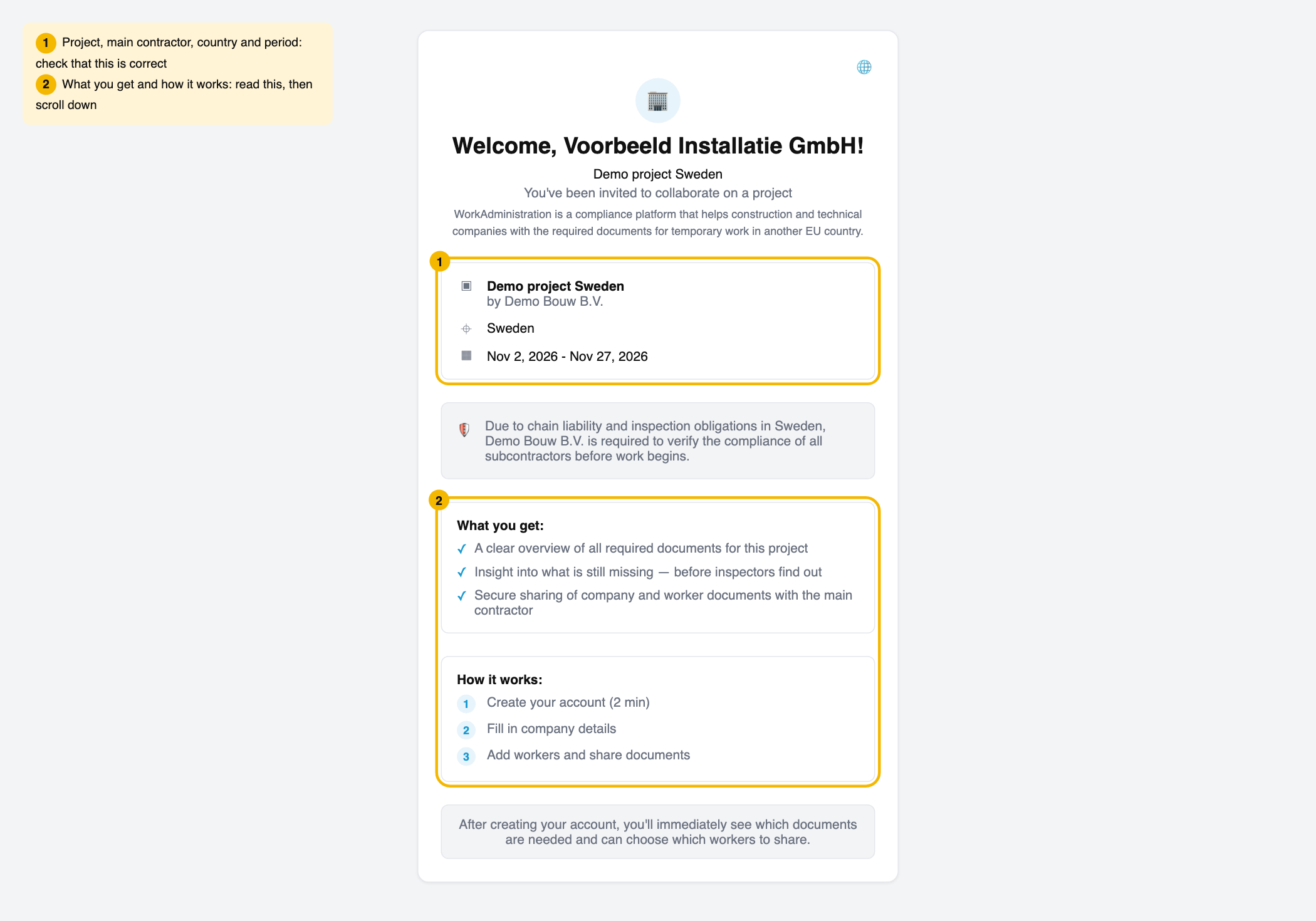
Do you see an amount and the button Pay and get started? Then the main contractor has chosen that you pay for access yourself. Read Invited as a subcontractor: free or subscription first.
Step 3: Create your account
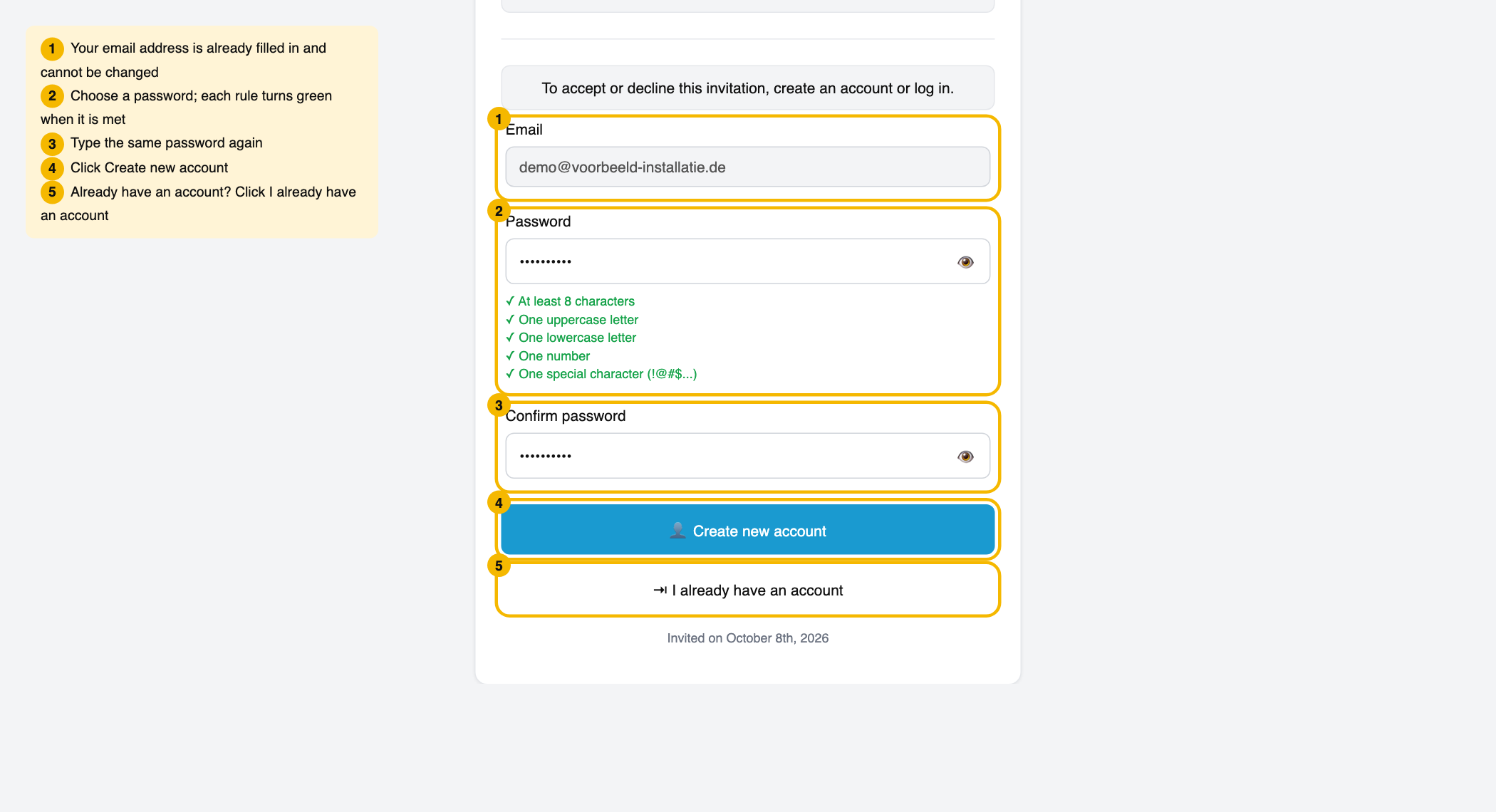
- Your email address is already filled in. You can't change it here.
- Type a password. It needs at least 8 characters, one uppercase letter, one lowercase letter, one number and one special character such as ! or @. Each line under the field turns green when your password meets it. The last line is in English: "One special character (!@#$...)".
- Type the same password in Confirm password.
- Click Create new account. You are signed in straight away.
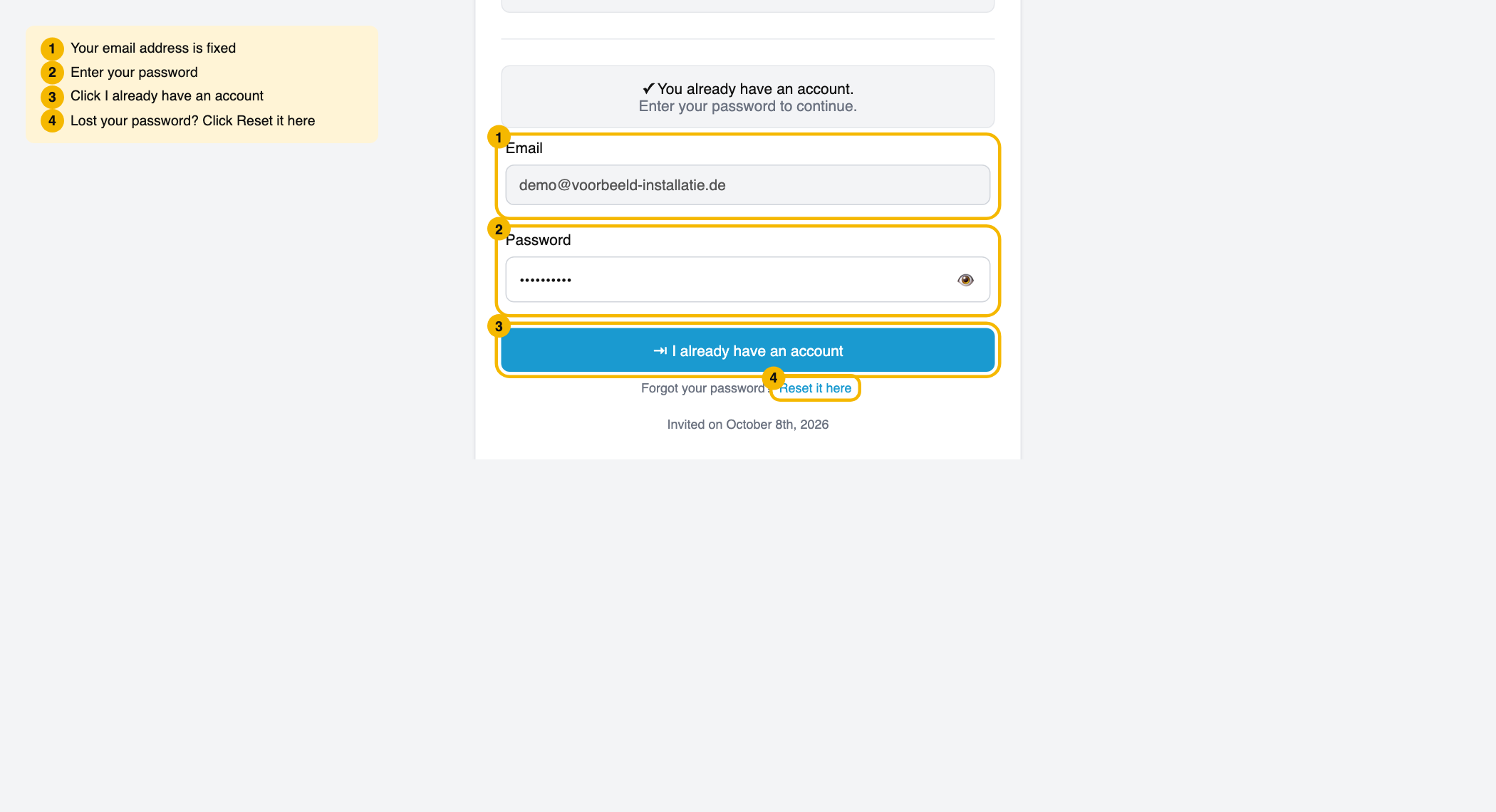
Already have an account? Then the page says "You already have an account." Type your password and click I already have an account. Forgot your password? Click Reset it here.
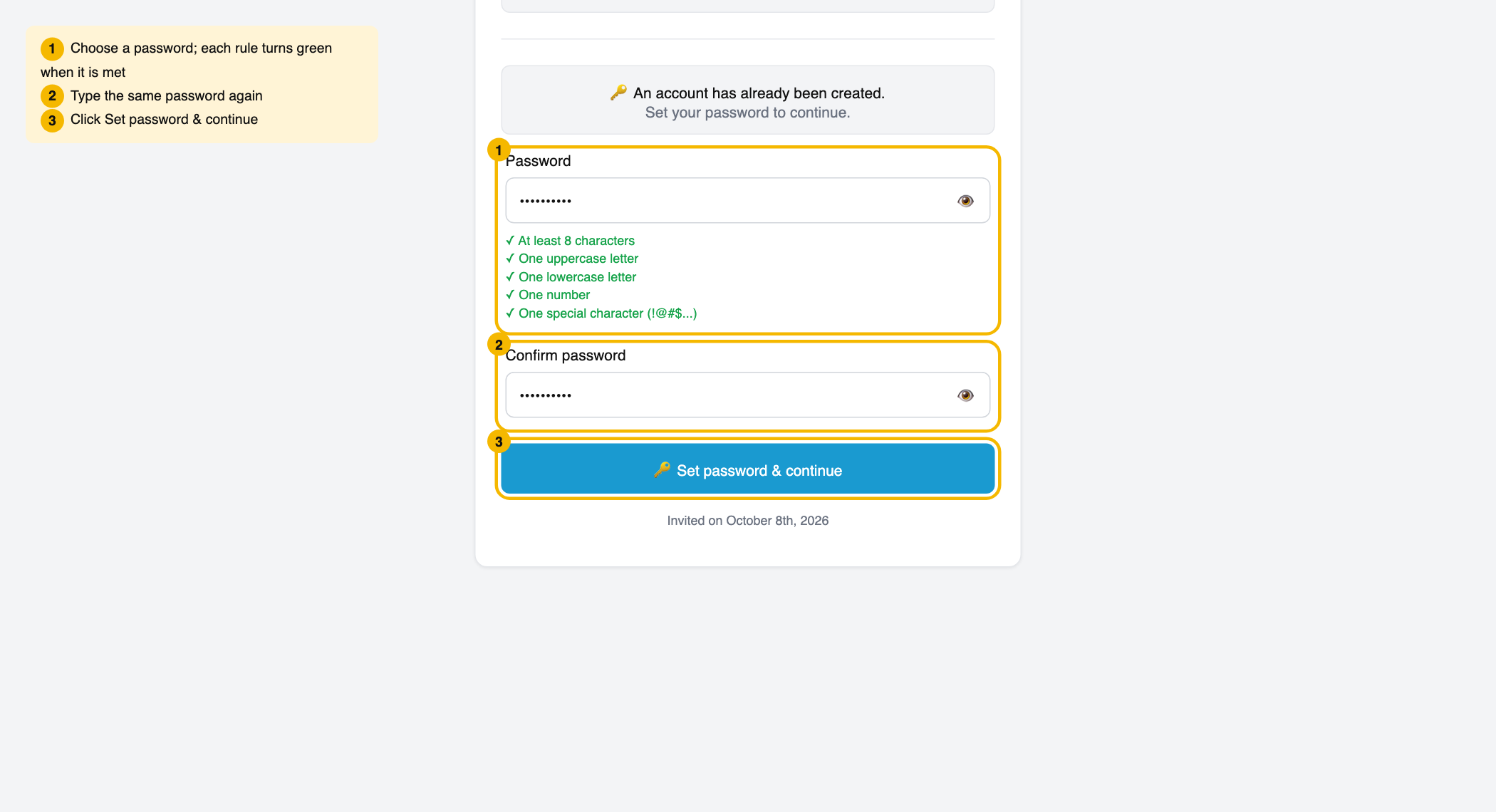
Do you still see the form for a new account? Click I already have an account and log in. You go back to the invitation. Does the page say "An account has already been created."? Choose a password, type it twice and click Set password & continue.
Is your login email wrong?
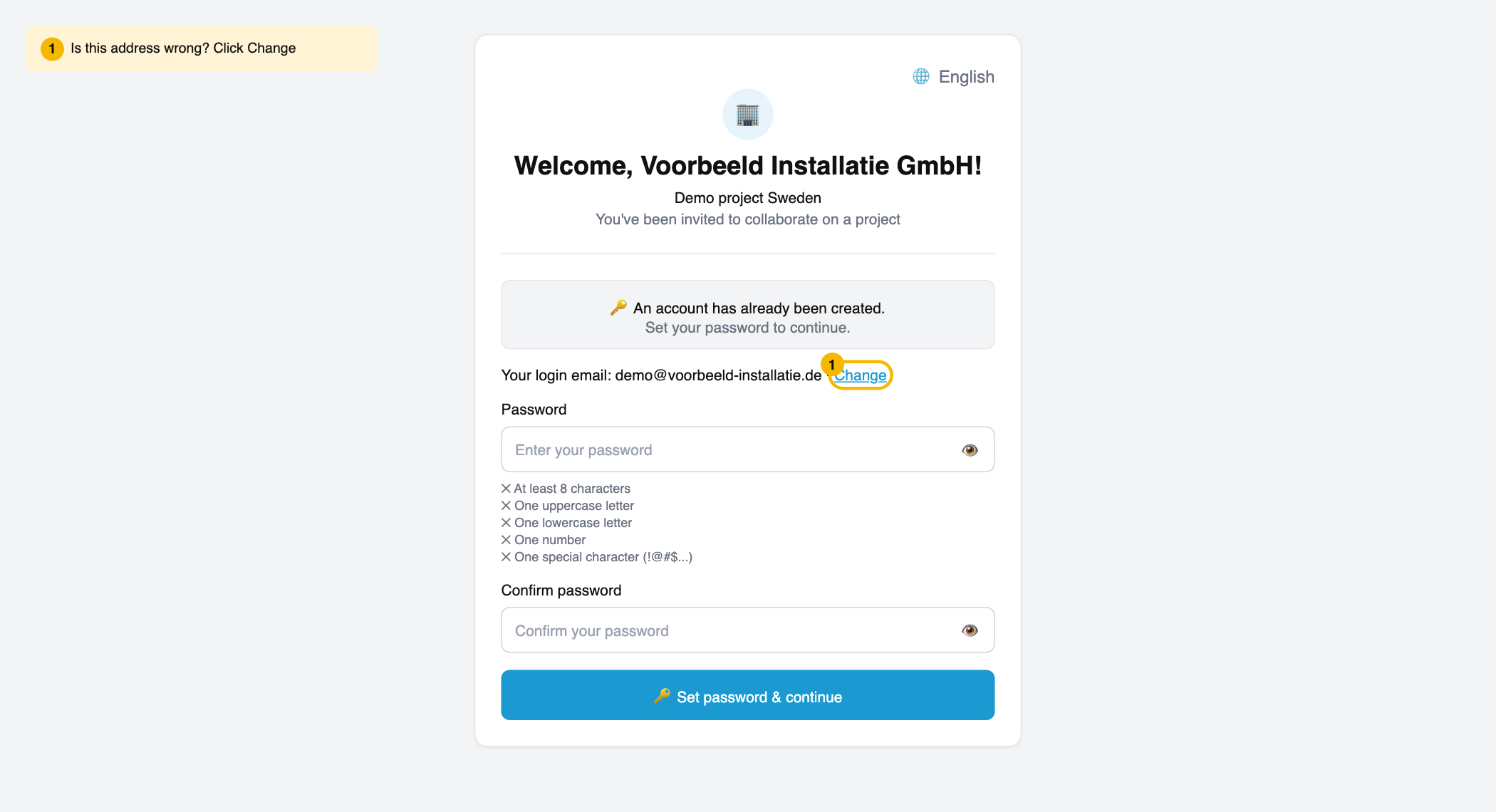
Does Your login email show an address that isn't yours? Then the main contractor typed the wrong address. You can change it yourself, as long as you haven't set a password yet.
- Next to Your login email, click Change.
- Type your own email address in the field that appears.
- Choose a password and type it again in Confirm password.
- Click Set password & continue.
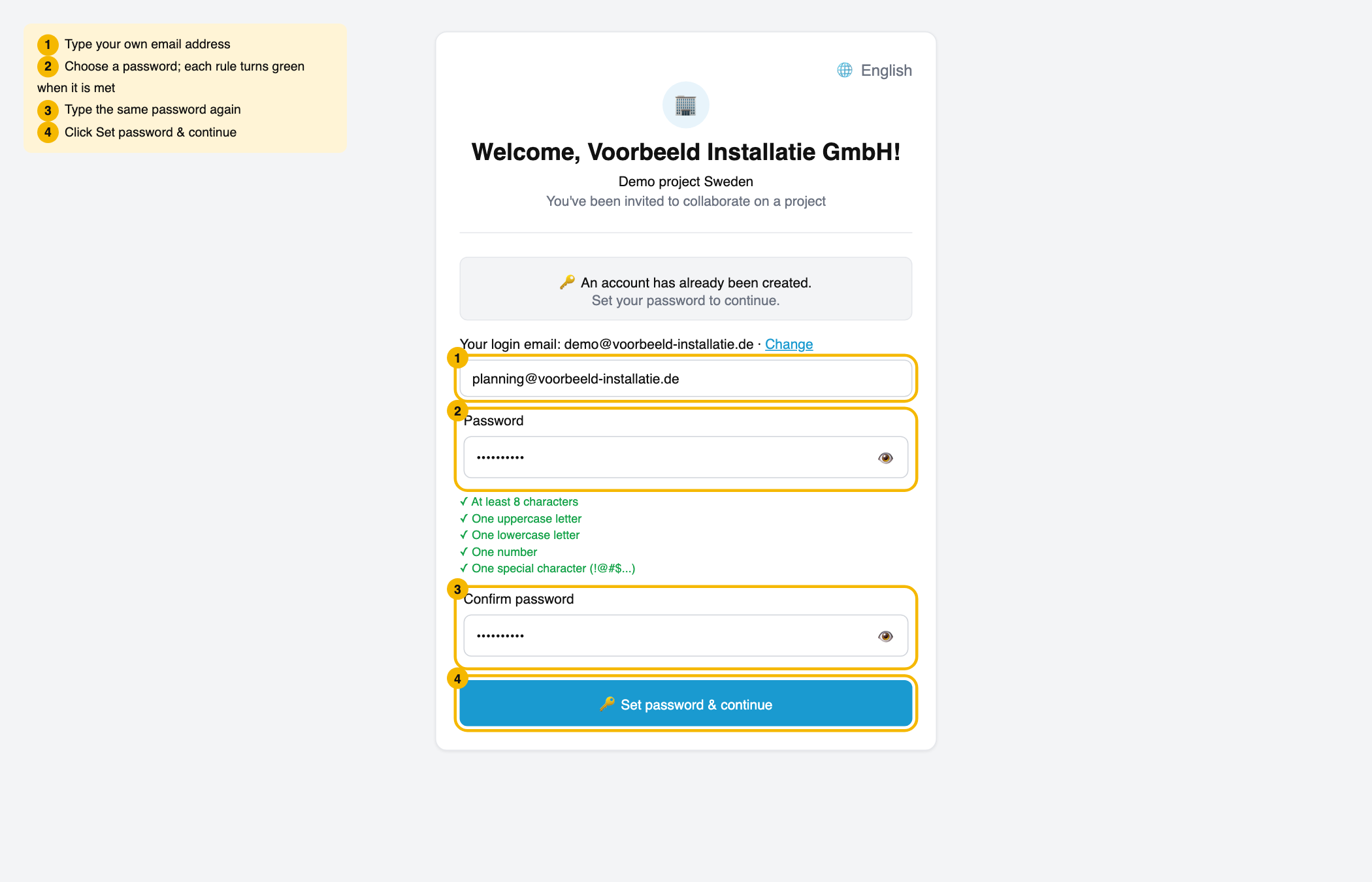
From now on, log in with this new address.
Already set your password? Then you can't change the address here any more.
Step 4: Check your company details
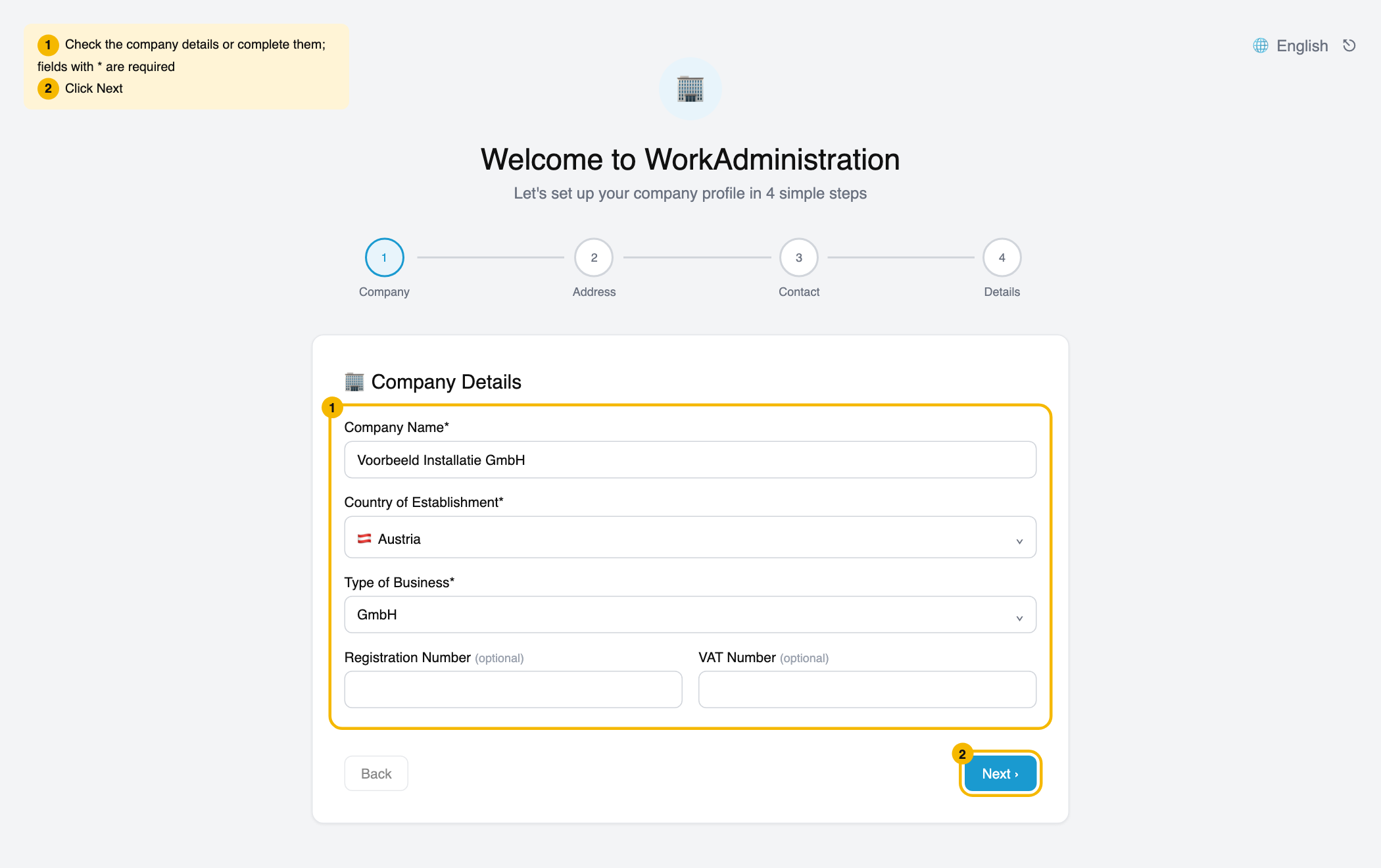
After a new account, "Welcome to WorkAdministration" opens with four steps. The main contractor has already filled in part of it. Check everything and add what is missing. Fields with a * are required.
- Company: check the company name, the country of establishment and the type of business. You don't have to fill in the registration number or the VAT number. Click Next.
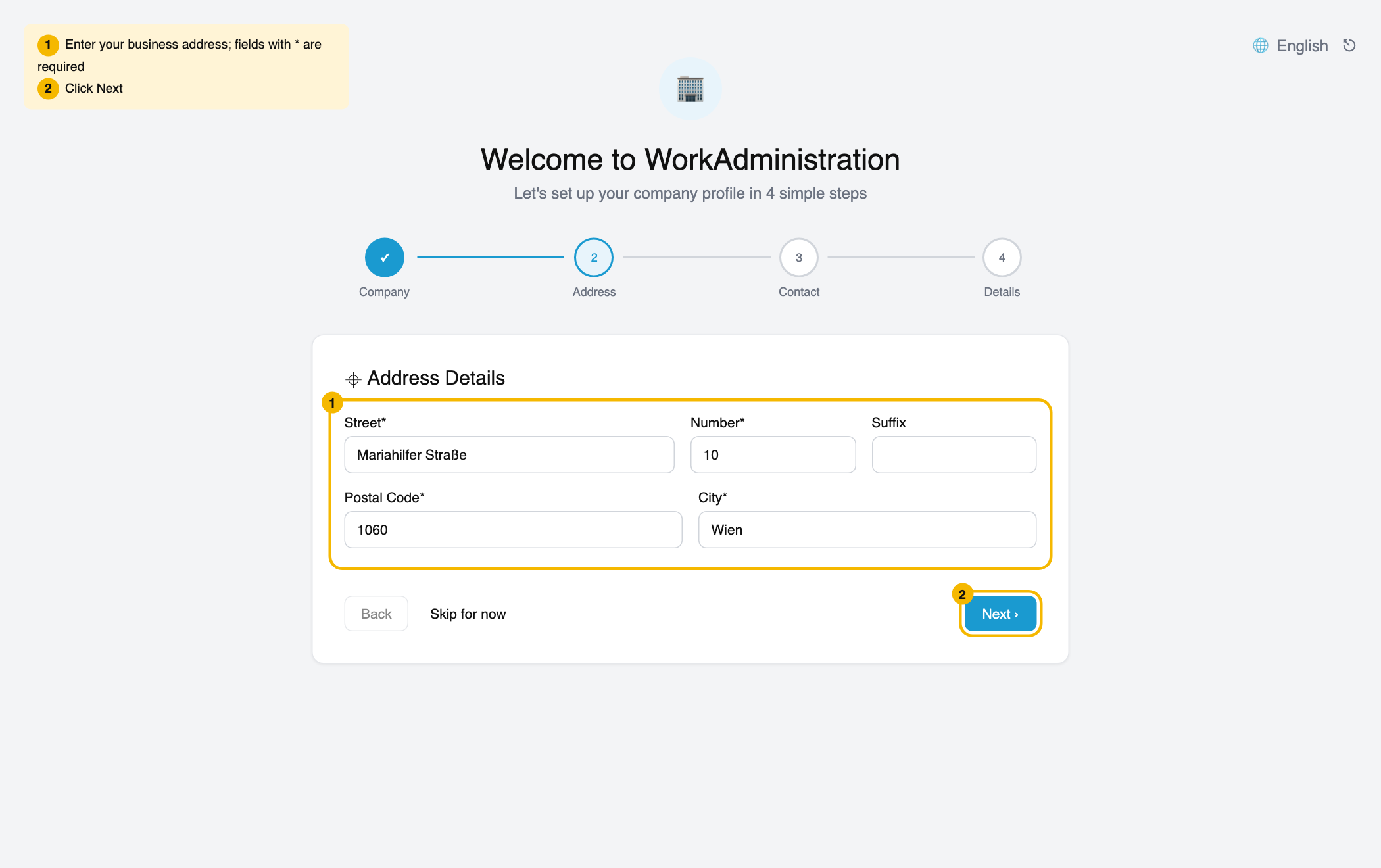
- Address: fill in street, number, postal code and city. Click Next.
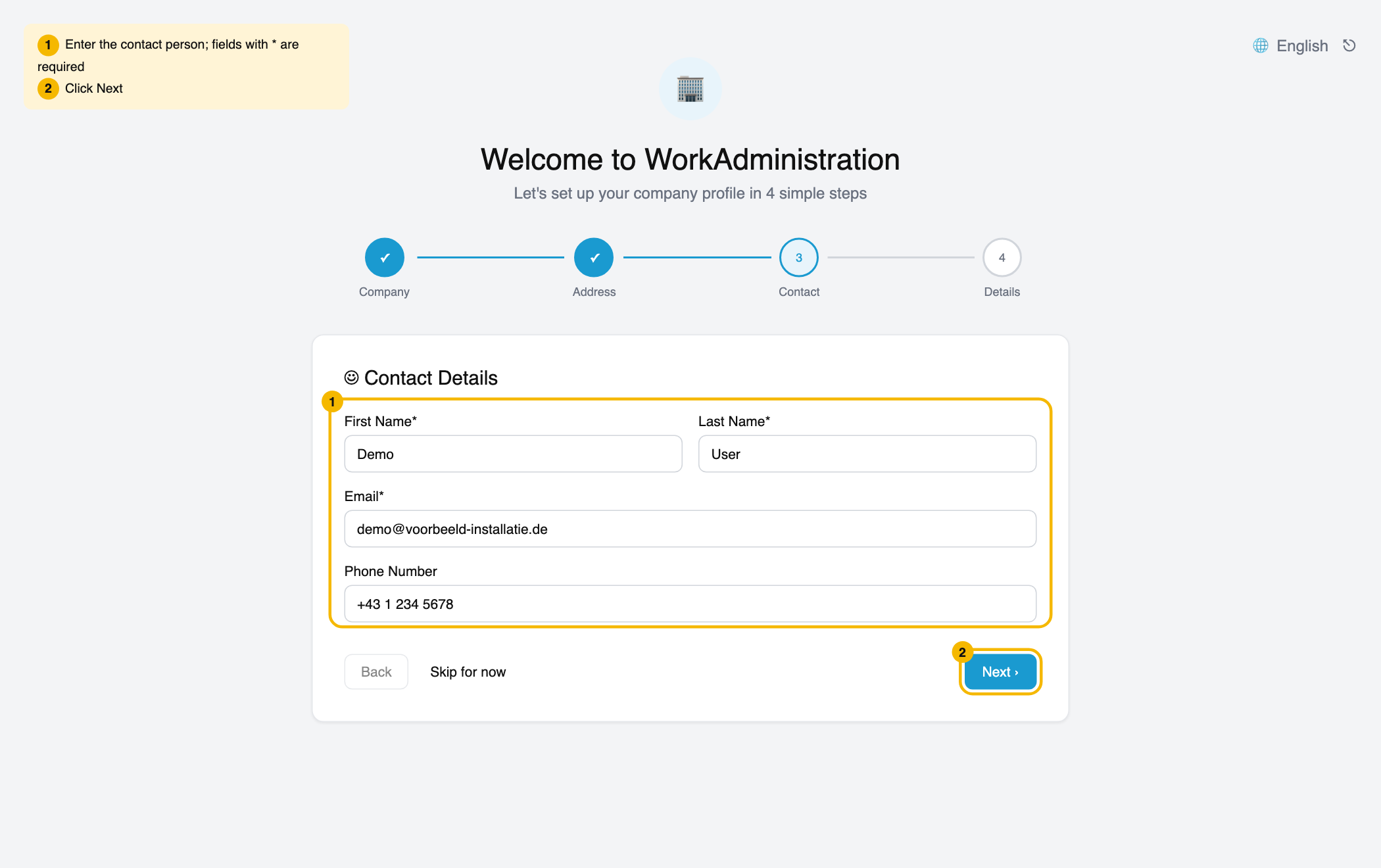
- Contact: fill in first name, last name and email. Click Next.
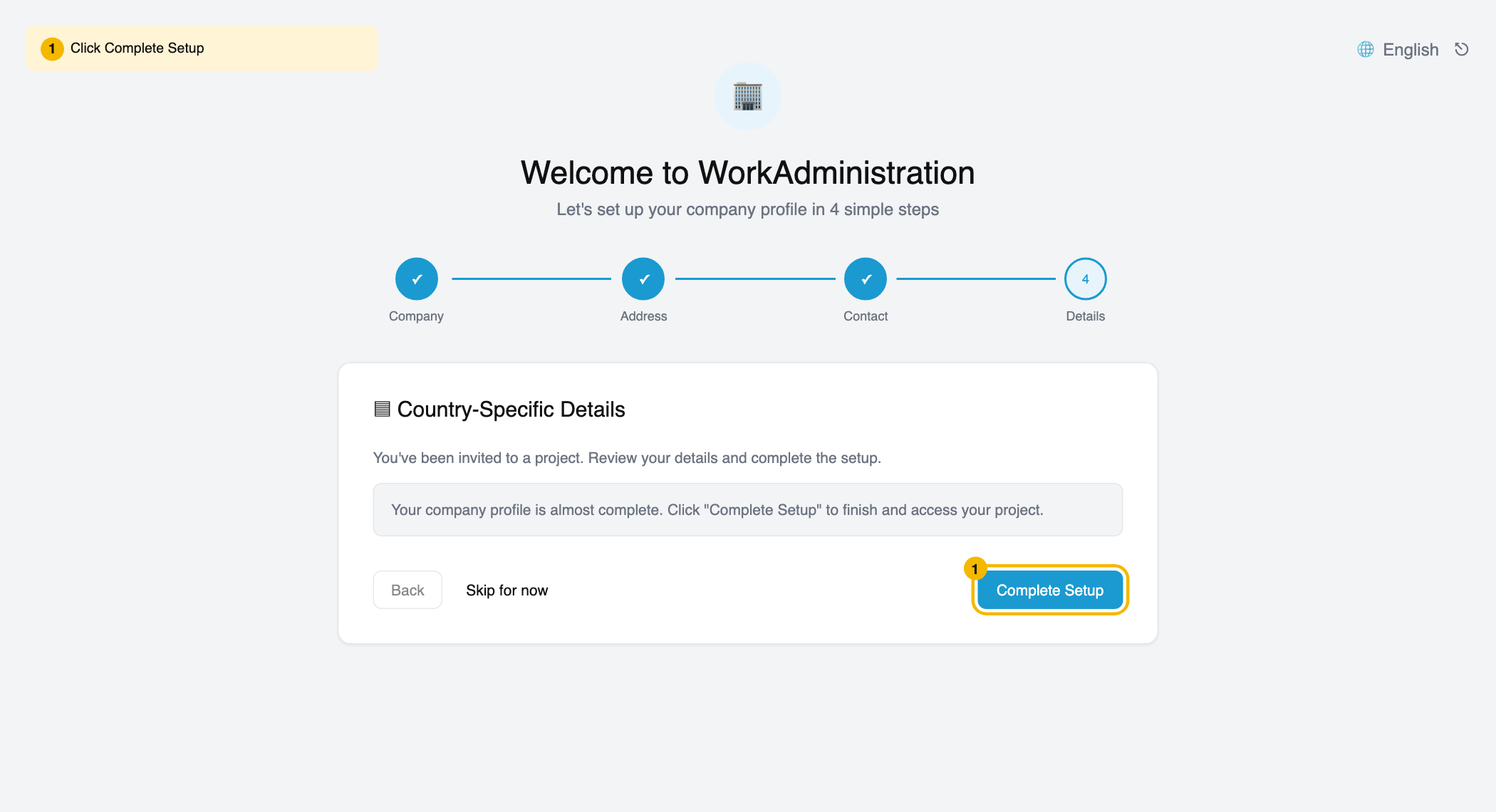
- Details: click Complete Setup. This accepts the invitation in the software and shares your employees with the main contractor.
No time right now? Click Skip for now. The invitation then stays on your dashboard.
Step 5: Work in your project
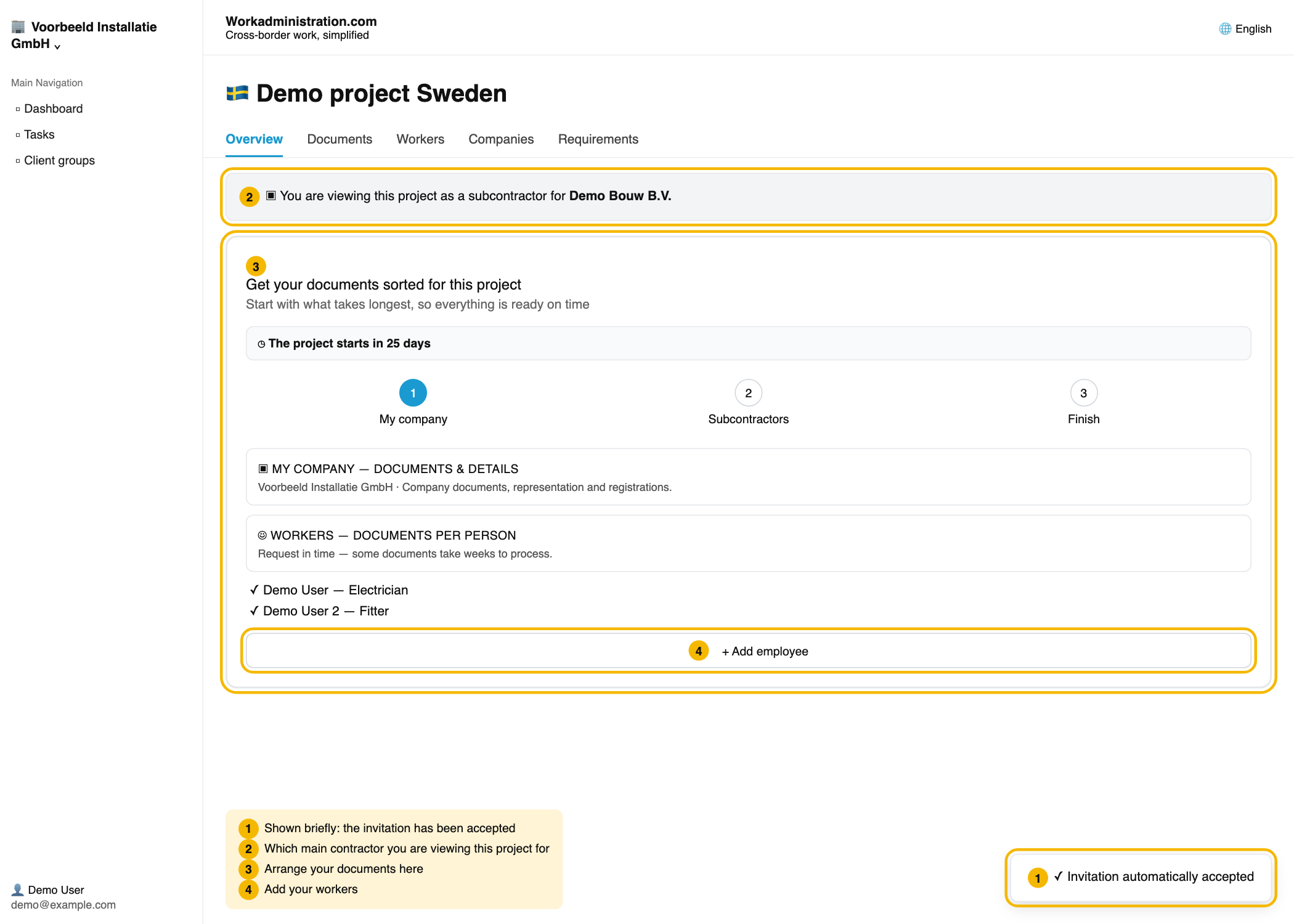
Your project opens with the notice "Invitation automatically accepted". Under "Get your documents sorted for this project" you continue with My company, Subcontractors and Finish. Click Add employee to add your employees.
Find your project again
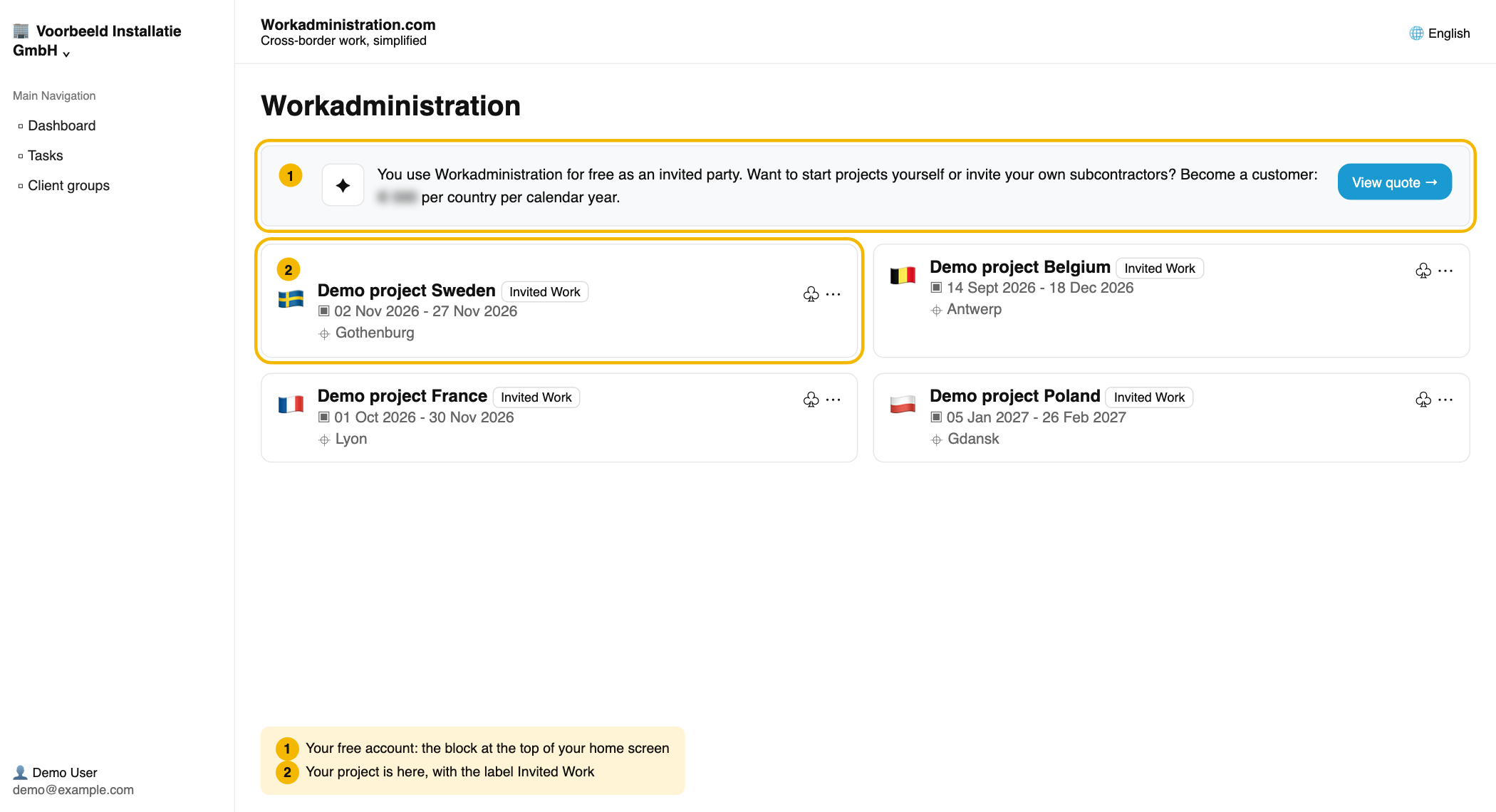
Click Dashboard on the left. Your project is among your projects, with the label "Invited Work". Do you want to start your own projects or invite your own subcontractors? Click View quote.
Doesn't work?
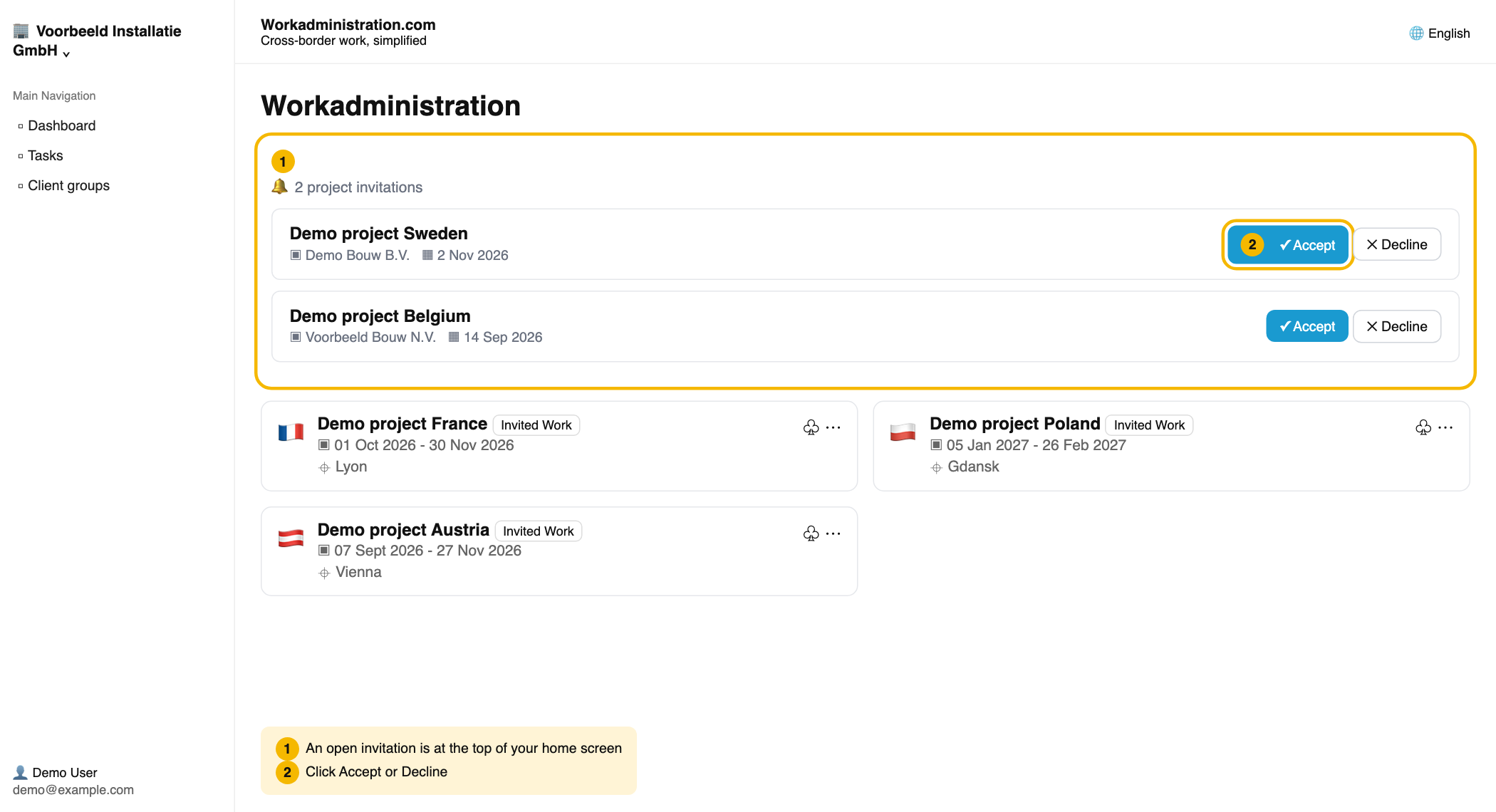
- Is the invitation still open (for example after Skip for now)? It is at the top of your dashboard. Click Accept next to the project.
- Do you see the notice "Uitnodiging nog niet geaccepteerd"? The app shows it in Dutch, whatever language you use. Open the Project Invitations page and click Accept next to the project.
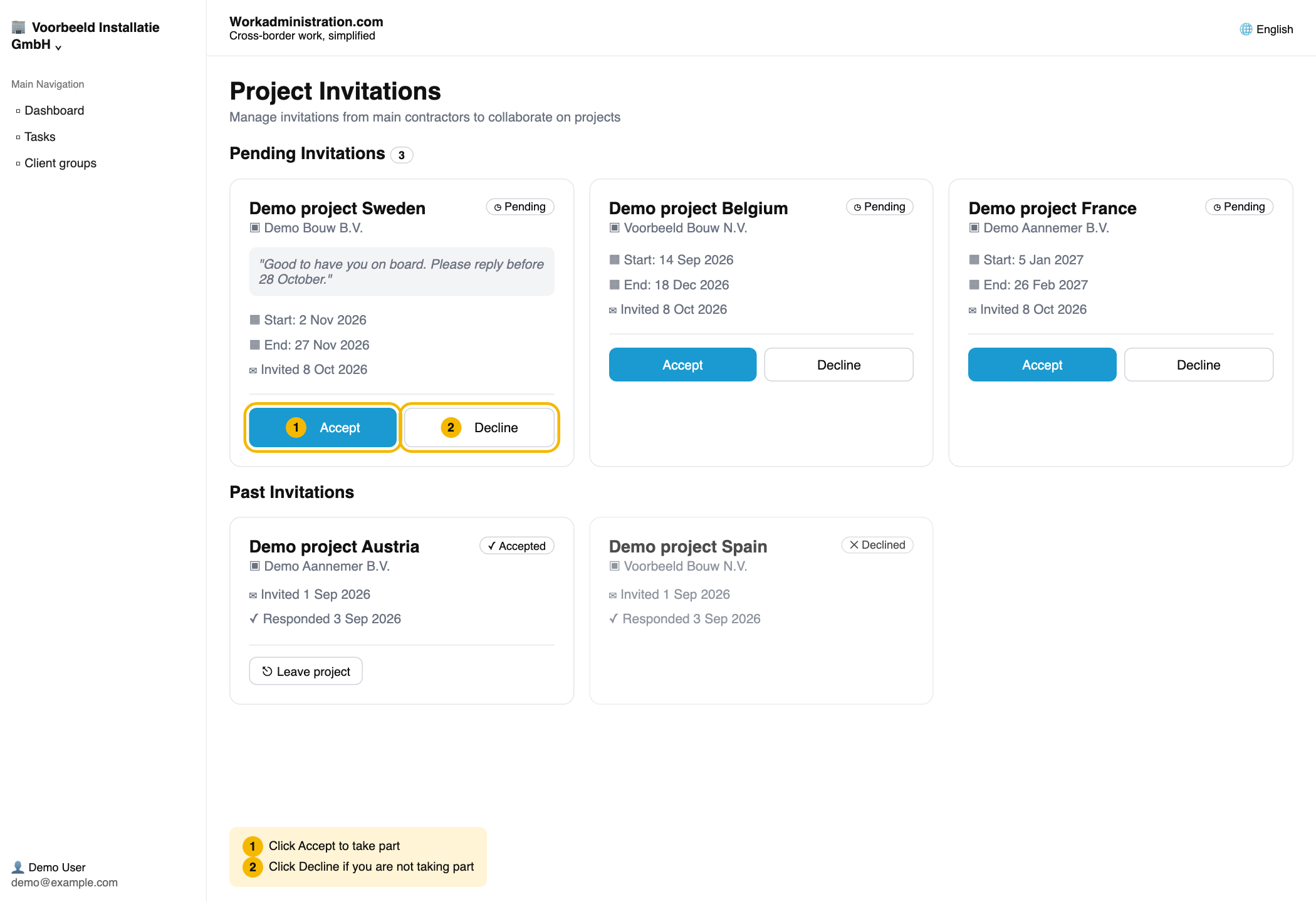
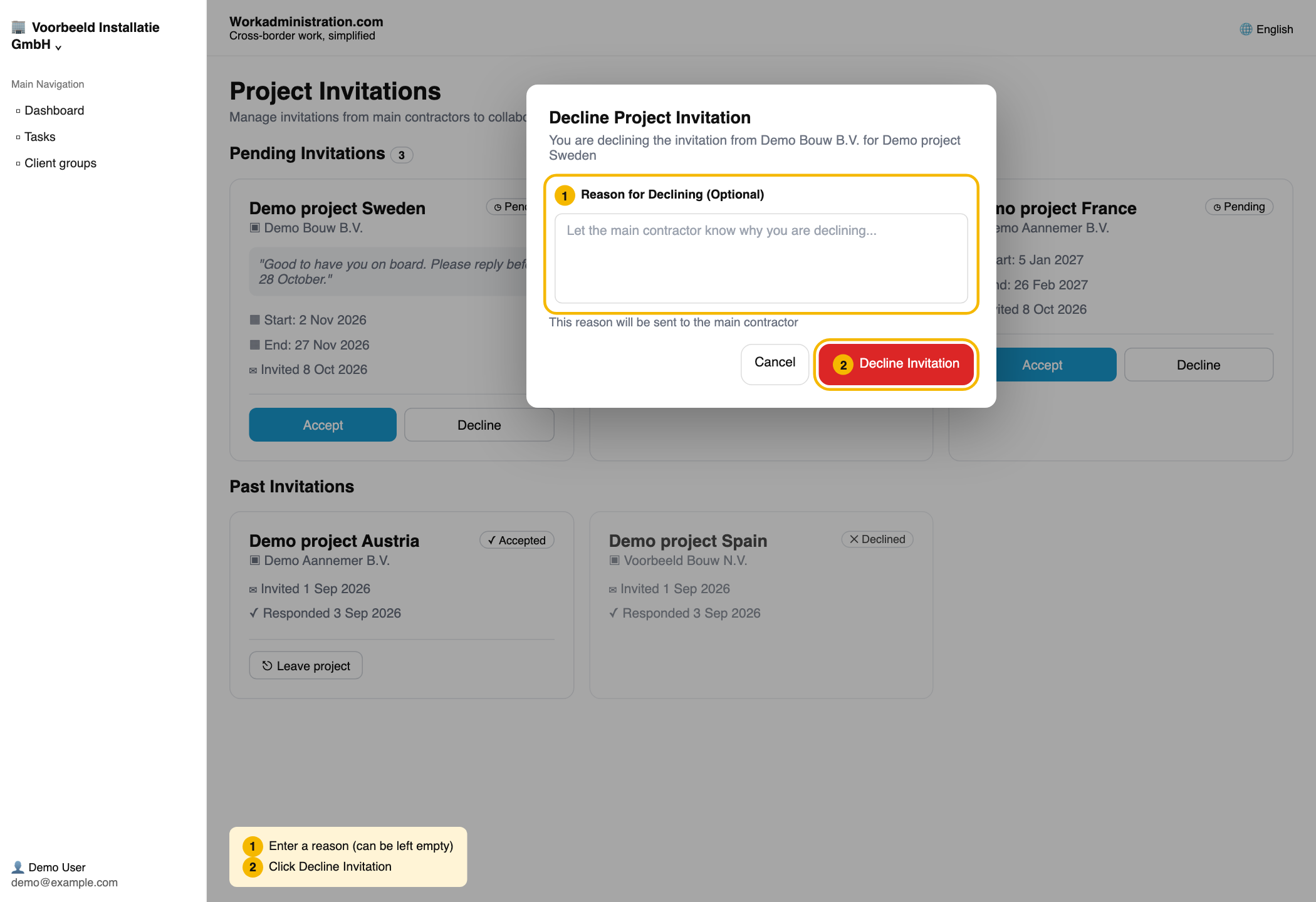
- Don't want to take part? Click Decline (in the email the link is Decline invitation; on your dashboard and on Project Invitations the button is Decline). You can add a reason for the main contractor, then click Decline Invitation. From the email you have to log in first.
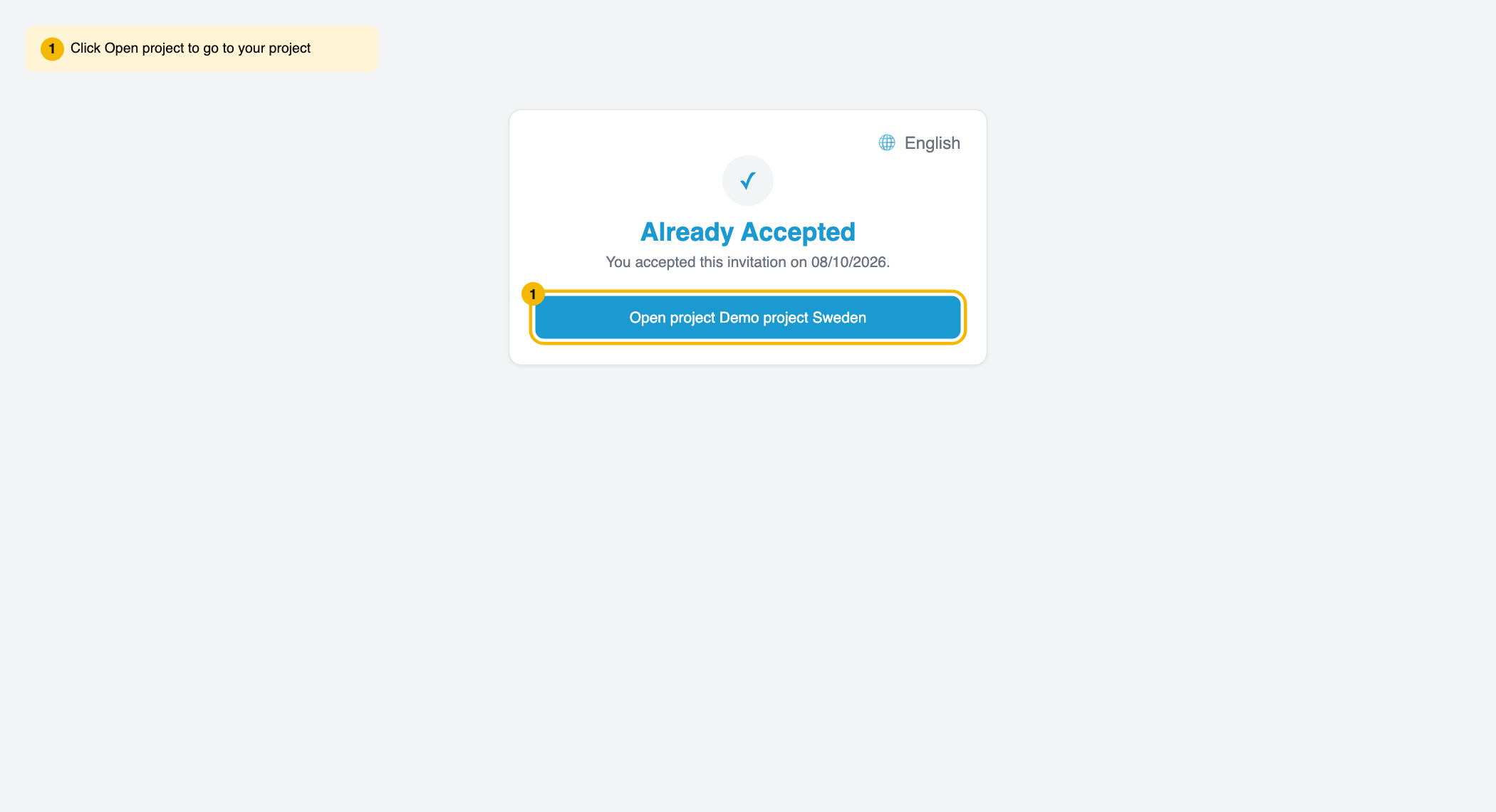
- Do you see "Already Accepted"? Click Open project, or Go to Dashboard and look for the project with the label "Invited Work".
Read more
👍 100% found this helpful
Was this article helpful?